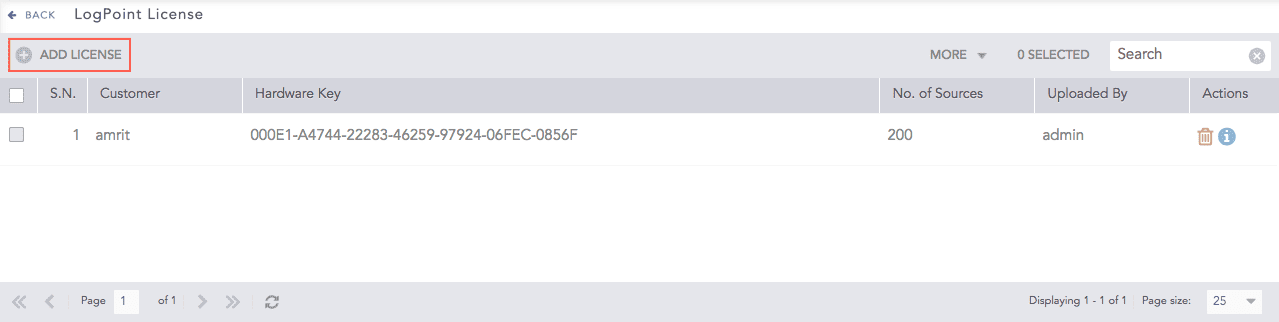
You need a valid Logpoint license to use it. The license contains the details of the purchased product, the number of sources it can handle, and its expiration date.
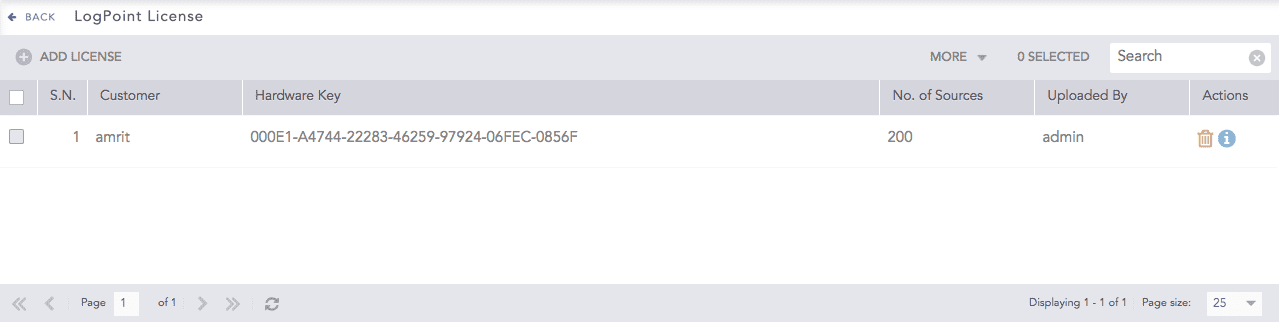
Logpoint Licenses
Note
You cannot edit a license.
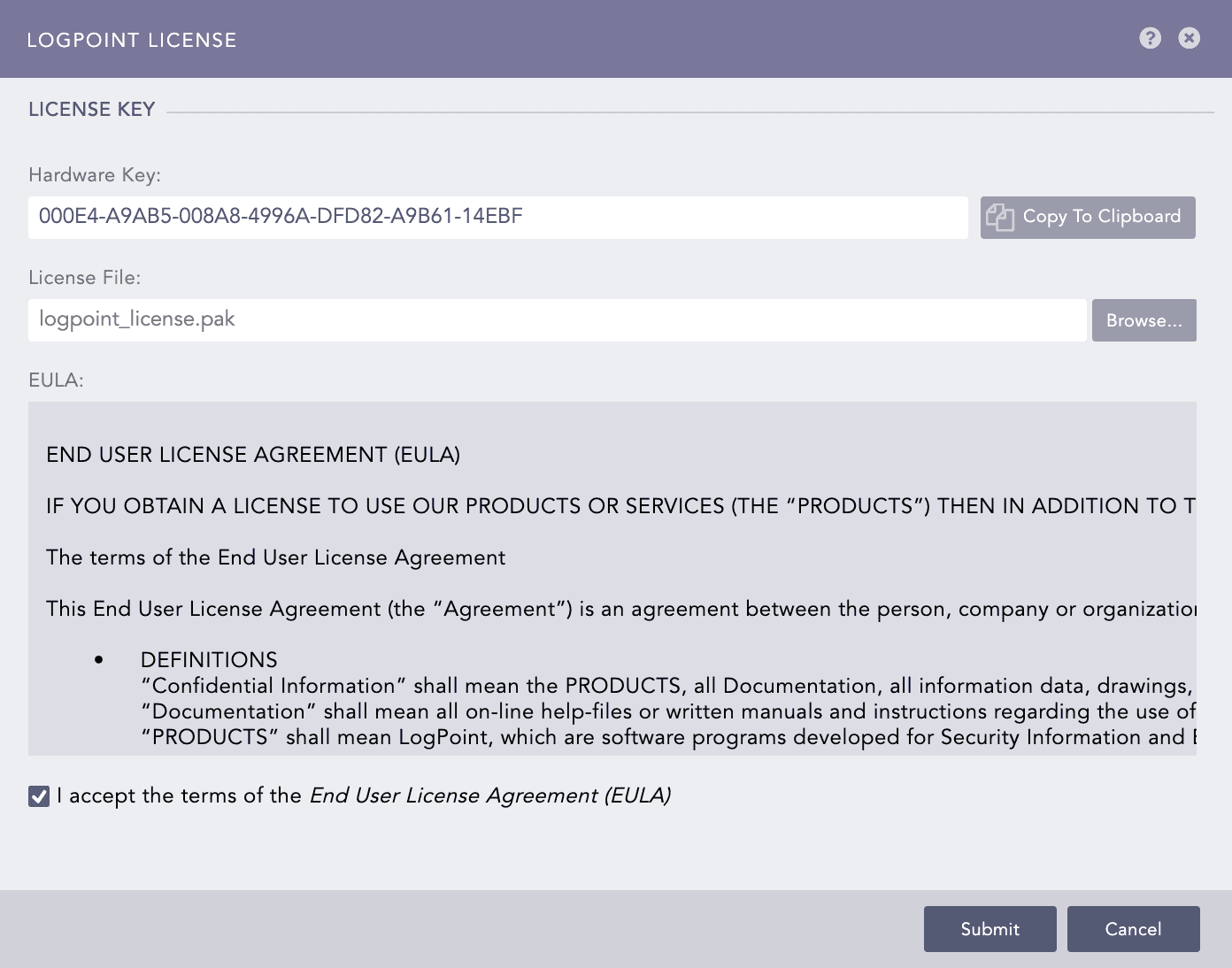
Before adding a license, contact your vendor and provide them your Hardware Key. You can find the key in your appliance.
Note
You can also see the hardware key by going to Settings >> System Settings >> Logpoint License and clicking ADD LICENSE.
Before deleting a license, make sure that it is not in use.
Go to Settings >> System Settings >> Logpoint License.
Click the Delete icon from the Actions column.
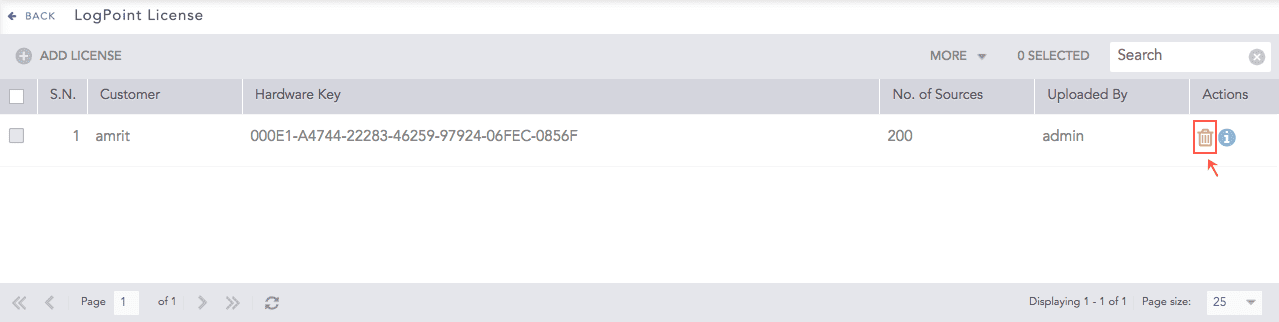
Logpoint Licenses
To delete multiple licenses, select the licenses. Click More and select Delete Selected.
To delete all the licenses, click More and select Delete All.
Click Yes.
When a license expires, you must purchase and add a new license.
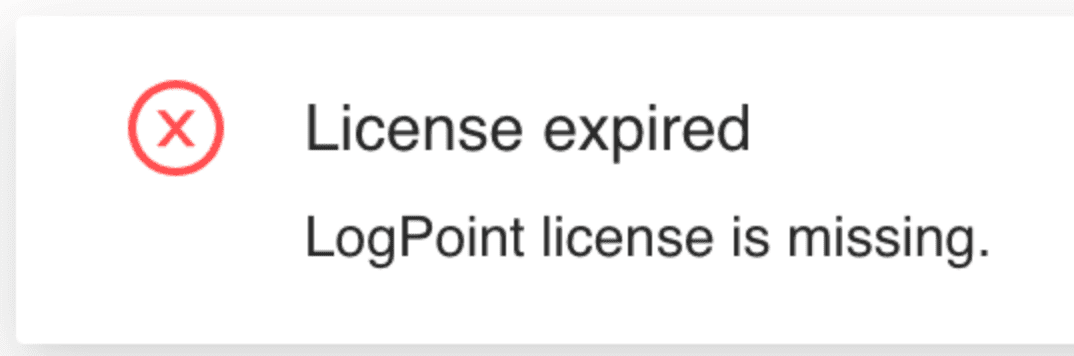
License expiry notification
For help on purchasing a new license, contact Logpoint Support.
On an expired license:
Logpoint collects and stores your logs but you cannot use search or perform analytics on them.
Logpoint generates alerts but you cannot see them.
You can contact Logpoint Support and access Help Center.
You can add a new license from Settings >> System Settings >> License.